How to create custom reports in Google Analytics 4: step-by-step

Table of Contents
GA4’s standard reports cover the basics. Traffic sources? Check. User engagement? Got it. Conversion tracking? It’s all there.
And you can customize them inside GA4 itself. Add your own dimensions, rearrange metrics, and save reports that focus on exactly what your clients need to see.
For a lot of agencies, that’s enough.
But when you’re managing multiple clients, the manual work adds up. Logging into different GA4 properties, exporting reports, and pulling data from other marketing channels to compare everything—it takes time away from actual analysis and strategy.
This guide helps you figure out what you need. We’ll walk through how to build custom reports in GA4, when they work well, and when it makes sense to add a reporting platform that automates it all.
Key Takeaways
GA4 custom reports let you modify client reports by adding specific dimensions, applying report filters, and choosing which metrics show up—so you see exactly what your clients need.
You can customize reports inside GA4 using the variables tab and tab settings column, then save them to report collections for your whole team to access.
In this guide, we’ll cover how to create custom reports step-by-step, use custom dimensions to track your marketing efforts, and how a Google Analytics reporting platform like AgencyAnalytics helps agencies manage it all across multiple clients.
What are GA4 custom reports?
Think of custom reports as GA4’s way of letting you build your own dashboards. You start with a standard report—say, the traffic acquisition one—and then modify it. Add dimensions your client cares about. Remove the ones they don’t. Rearrange metrics so the important stuff shows up first.
You’ve got two options:
Detail reports start with one of GA4’s existing reports and let you customize it. For example, you could take the traffic acquisition report and modify it to show only organic search traffic, broken down by landing page instead of source/medium.
Overview reports are dashboard-style snapshots. You pick up to 16 summary cards (things like total users, conversion rate, top pages) and arrange them however makes sense for your clients.
Once you build a custom report and add it to your report collections, your whole team can access it—so you can stop fielding questions like “wait, which filters did we use last time?”
Custom reports vs explorations
Here’s where things get a bit confusing. GA4 has custom reports and explorations, which sound similar but work differently.
Custom reports are for recurring checks. Think monthly traffic reviews, campaign performance tracking, and weekly SEO progress. Save a modified version of a standard report and it lives in your main Reports section for ongoing monitoring.
Explorations are for when you need to investigate something specific, like when a client asks why their conversion rate dropped last month. You’d build a funnel exploration to see where people are dropping off. Or use path exploration to map how users actually move through the site.
The big difference comes down to data. Explorations pull from raw event data, which GA4 only keeps for 14 months (for standard properties), while standard reports use aggregated data that sticks around indefinitely.
For most agency work, custom reports handle the regular stuff. Explorations are your backup when someone asks a question that needs deeper digging.
AgencyAnalytics has helped us seamlessly incorporate GA4 reporting for our clients. We are excited to see how we can expand our GA4 reporting by identifying and reporting on a slew of new KPIs found in GA4.
Rick Hogan, CEO and Founder, Bleevit
Custom dimensions in standard GA4 reports
Out of the box, GA4 tracks the basics like page views, sessions, and users. But it doesn’t know specifics like which author wrote each blog post, or whether a user is on your free plan or paid plan. That’s what custom dimensions fix.
Agencies use them to track:
Content author or post category
User membership level
Product type or SKU
Campaign creative variation
Form ID or type
To use custom dimensions in your reports, there are two steps:
Step 1: Send the data. Set up your Google Tag Manager (or gtag.js) to send event parameters with your GA4 events. For example, when someone views a page, you might also send an “author_name” parameter.
Step 2: Register the dimension. Head to Admin > Custom Definitions in GA4 and register those parameters so they show up in your reports.
Here’s the process:
Go to Admin > Custom Definitions > Create custom dimension
Name it something clear (this is what you’ll see in reports)
Pick the scope: Event or User
Enter the exact parameter name (case-sensitive, it has to match what you’re sending from GTM)
Add a description (optional)
Click Save
Data from new custom dimensions takes 24-48 hours to start appearing in your reports. And they’re not retroactive, so you’ll only see data collected after you create them, not historical data. But once they’re set up, you can use them to slice and dice your data however your clients need it.

Agency tip: Need custom analytics metrics for agencies without the restrictions? AgencyAnalytics combines data from 85+ platforms—no GA4 limits. Plus, it’s free to start.
How to create custom reports in GA4
Now, let’s walk through the exact process of creating reports in GA4. We’ll focus on detail reports since they’re what most agencies use for client dashboards.
Step-by-step setup
Step 1: Pick your starting point
Find a detail report in GA4 that’s close to what you want. If you’re building an SEO report, start with Reports > Acquisition > Traffic acquisition.
Look for the pencil icon in the top right corner. That’s your “Customize report” button. Click it.
Step 2: Customize your dimensions
On the left side, you’ll see Report Data. Click Dimensions.
From here, you can:
Add new dimensions (click “Add dimension”)
Drag dimensions to reorder them
Remove ones you don’t need (three-dot menu > Remove)
Set which dimension shows up by default
For an SEO report, you might add Landing Page, organic search traffic (if you set that up as a custom dimension), or Page Title.
Step 3: Customize your metrics
Click Metrics in the same panel. You can add up to 12 metrics per report and drag them around to change the order they appear in your table.
Step 4: Tweak the visuals (optional)
Those two charts at the top? Fully customizable. Change the chart type, reorder them, or hide them completely if you just want clean tables.
Step 5: Save your work
When you’re done, click Save (top right corner).
You’ll get two options:
Save changes to current report: This overwrites GA4’s default. Not recommended unless you’re really sure.
Save as new report: Creates a new custom report. This is what you want.
Name it something descriptive like “SEO Blog Performance” or “Campaign Traffic Breakdown”. And most importantly, hit Save.
Step 6: Add to report collections
Your new custom report won’t automatically appear in the left navigation. To fix that:
Go to Reports > Library
Find your report
Three-dot menu > Click Edit collection
Pick a collection (Life cycle, User, etc.) or create a new one
Click Apply, then click Save
Now it’s live for your whole team.
Best use cases
So, when should you actually build a custom report? Here’s where they work best:
Client-specific dashboards
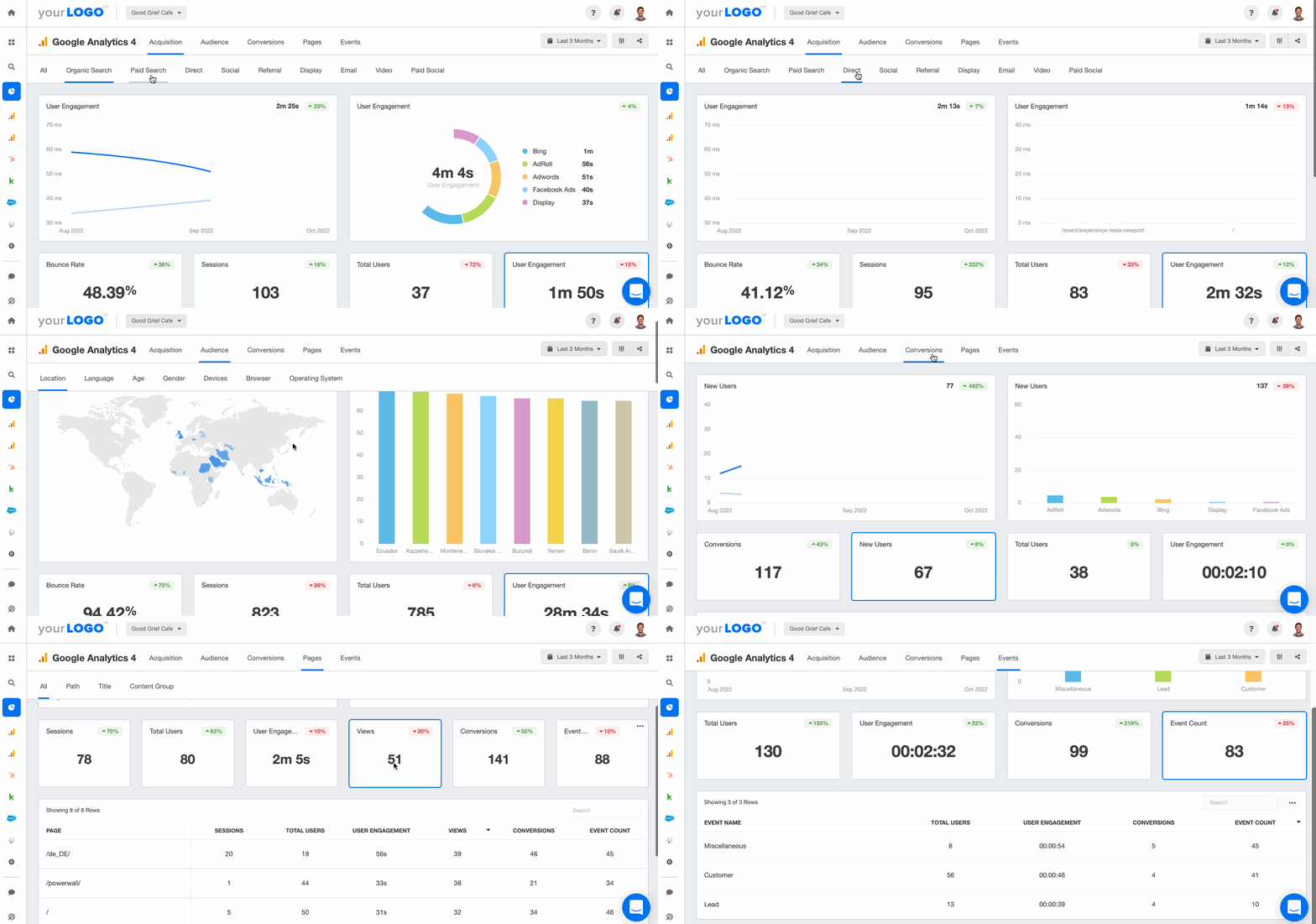
Custom reports work best when they’re built around what each client actually cares about. An ecommerce client might need total revenue and event count broken down by product category. A lead gen client probably cares more about form submissions and conversion rates by traffic source. Custom reports let you zero in on what matters—and leave out the rest.
Content performance tracking
Want to compare how blog posts perform vs. landing pages vs. product pages? You can build a custom report that breaks it all down. Use custom dimensions like author name, content type, or category, then pull in page views, new sessions, and bounce rate to show your client which pages are pulling their weight.
Traffic by segment
Clients investing in mobile optimization need to know if their mobile experience is working. Custom reports can split traffic by device, so they see right away if mobile bounce rate is through the roof compared to desktop. Same thing for multi-channel campaigns. Break it down by source and they’ll see which channels bring engaged visitors and which ones are wasting budget.
Campaign tracking
Combine campaign data with custom dimensions like campaign type, audience segment, or creative version to track which campaigns are actually delivering results. One ecommerce client might want to see which Facebook ad creative drives the most purchases. Another might need to know which audience segment has the lowest cost per lead. Build the report once, and those answers are always one click away.
SEO-specific reporting
SEO clients need to see what’s working in organic search without wading through paid traffic and direct visits. A custom report filtered to organic-only traffic shows landing page performance, engagement, and conversions all in one place. Add custom dimensions to segment by page type and see exactly how blog posts perform compared to service or product pages.
Common mistakes
Custom reports seem straightforward until you hit one of these snags:
Not registering custom dimensions: This is the #1 issue. You send the data from Google Tag Manager, but forget to register it in GA4. Without that step, your custom data won’t show up anywhere. If your numbers look off, check Admin > Custom Definitions first.
Forgetting to add reports to collections: You build this beautiful custom report, hit Save, and... can’t find it anywhere. That’s because you skipped the last step. Go to Reports > Library, find it, click Edit collection, and add it somewhere visible.
Overloading dimensions: It’s tempting to add every dimension you can think of. Don’t. Stick to one main dimension, maybe two others max. Too many options overwhelm people and slow down decision-making.
Ignoring the date range: Always double-check your date range. If a client asks about “last month” and you’re showing the last 30 days instead of the calendar month, your numbers won’t line up with their expectations. Set smart defaults so monthly reports default to the previous calendar month and weekly reports to the last full week.
Not using the blank template: Trying to turn a traffic report into a conversion report by tweaking it? You’ll end up with leftover dimensions and metrics that confuse the final output. When you need something totally different, start with a blank template.
Mixing up metrics and dimensions: Dimensions describe (like device category or page title). Metrics measure (like new users, bounce rate, or total revenue). You can’t drag metrics where dimensions go. Knowing the difference saves a lot of head-scratching.
Skipping the test run: Always preview with real data before sharing with clients. Sometimes a report looks perfect in theory, but shows ”(not set)” for half your rows. Or a metric calculates weirdly. Catch it now, not during a client call.
Impress clients and save hours with custom, automated reporting.
Join 7,000+ agencies that create reports in minutes instead of hours using AgencyAnalytics. Get started for free. No credit card required.

Tips for agencies
Custom reports in GA4 work great when you’re managing a handful of clients. But once you hit 10, 20, or 50 clients, here are some ways to make your life easier:
Tip 1: Use white labeled dashboards to brand your reports
GA4 custom dimensions can flow directly into a Google Analytics reporting tool with white label options. So when your clients open their report, they see your brand at the top, not Google’s. This reinforces your value and keeps them focused on the insights, not the tool behind it.
Tip 2: Create reusable templates for similar client
Build a customizable report template for each type of client you work with. One for ecommerce, one for SaaS, and one for local service businesses. That way, when you onboard a similar client, you can just swap in their GA4 property, tweak the specifics, and you’re done in 10 minutes instead of two hours. Less time building dashboards means more time actually analyzing data and improving campaigns.
Tip 3: Combine GA4 with other marketing data
Your clients don’t just want website numbers. They want to see how everything connects: GA4 traffic next to Google Ads spend, Facebook campaign results, and SEO rankings. Tools that pull marketing performance analytics into one dashboard let you see the whole picture and update your client on the complete story, not just one chapter of it.

Tip 4: Automate report delivery
Automated marketing reporting empowers agencies to quit wasting time on admin tasks and instead focus attention where it matters. One client wants reports on the first Monday of every month, another wants them biweekly, and another wants end-of-month summaries. With AgencyAnalytics, you can schedule them all to send themselves—freeing up hours every week you’d otherwise spend manually exporting and emailing reports.
Tip 5: Give clients live access
GA4’s interface overwhelms most clients. Give them a simple dashboard they can check anytime. No GA4 login, no training, no “can you pull this report for me?” requests. So when the CMO wants to check how last week’s campaign performed before their 8 a.m. board meeting, they can easily log in and see it themselves instead of waiting for you to pull the numbers. You field fewer questions, and they feel more in control.
Looking for a platform that checks all the boxes? AgencyAnalytics was built for agency life—white labeled dashboards, reusable templates, multi-platform data, automated delivery, and live client access. Your GA4 custom reports still power everything. You just stop spending hours each week managing them manually across multiple clients. Try it free for 14 days.

When to scale beyond GA4
Standard GA4 reports answer Google’s questions. Custom reports answer yours.
And once you figure out how to tweak dimensions and metrics (and actually remember to register your custom dimensions), GA4 stops feeling like a fight. That generic traffic report? Now it’s tracking your SEO wins. The engagement report? It’s showing which content your client’s audience actually cares about.
For agencies managing a few clients, this setup works. You build the reports, check them monthly, and send updates. Done.
But once you’re managing 10, 20, or 50 clients, you’re suddenly spending more time exporting reports, copying data into spreadsheets, formatting, and sending than actually analyzing performance.
That’s when adding a platform like AgencyAnalytics makes sense. Your custom reports in GA4 still do the heavy lifting; you’re just not wasting time managing them one property at a time anymore. Try it free for 14 days and see what client reporting looks like when you’re not rebuilding the same dashboards every month.
Kali Armstrong is a freelance content writer with nearly a decade of experience crafting engaging, results-driven copy. From SEO blogs to punchy short-form pieces, she combines strategic insight with authentic messaging to captivate audiences and drive results.
Read more posts by Kali ArmstrongWhat other agency experts are reading

Google Analytics automated reports: 2026 guide to automated GA reporting
Sick of spending countless hours on Google Analytics reporting? Learn how to set up automated Google Analytics reports and send to clients on a recurring schedule–in just a few clicks.

15 Google Analytics 4 (GA4) Metrics To Track
Google Analytics 4 is a powerful tool to measure user activity on your client’s website and optimize user engagement. With so many metrics and dimensions, it can be overwhelming. In this post, you will get a list of the most important Google Analytics 4 metrics to track for your agency.

Top 12 Google Analytics KPIs to track in 2026
Google Analytics is an industry standard tool for tracking marketing KPs. Here are the top 12 most important Google Analytics KPIs you should be tracking in 2026.